Install FreeFCC on RC2
Tested on Mini 5 Pro + RC 2, latest firmware. No PC required.
Step 1 — Prepare the microSD card
- Format the microSD card in the RC 2 first. Insert the card into the controller, go to storage settings, and format it. If you skip this, the RC 2 won't let you browse files on the card.
- Download the helper apps zip and the FREEFCC app from the buttons above.
- Extract the zip file — you'll get a folder with the helper apps.
- Put the FREEFCC.apk file inside that extracted folder.
- Move the whole folder onto your microSD card.
- Insert the microSD card into your RC 2.
Step 2 — Install the helper apps
- Swipe down from the top of the RC 2 screen, tap the SD card notification, then tap EXPLORE.
- Open your folder on the microSD card.
- Install 01_PackageInstaller — tap it, then CONTINUE → INSTALL → DONE. Do not open it.
- Install 02_FileManager the same way. Do not open it.
Step 3 — Restart the controller
Hold the power button to shut down, then power it back on. This registers the package installer.
Step 4 — Install the launcher
- Swipe down, tap the SD card notification, tap EXPLORE, and open your folder again.
- Install 03_ATVLauncher — CONTINUE → INSTALL → DONE.
- Do not open it yet.
Step 5 — Install & configure Edge Gestures
- In the same folder, install 04_Edge Gestures — CONTINUE → INSTALL → OPEN.
- Follow the setup prompts: grant the Accessibility service permission when asked.
- In Edge Gestures: disable the Left gesture and leave only the Right side enabled.
- Scroll down to "Swipe to the left", tap it, then choose Application.
- Select ATV Launcher from the app list.
Now swiping from the right edge toward the left will open the ATV Launcher.
Step 6 — Install FreeFCC
- Swipe from right to left on the screen to open the ATV Launcher.
- Open the Files app from within the launcher.
- Navigate to your folder and tap the FREEFCC.apk file.
- Tap CONTINUE → INSTALL → OPEN.
Step 7 — Activate FCC Mode
- With the FreeFCC app open, tap Connect.
- Tap Enable FCC + Altitude — wait for the green checkmark.
Step 8 — Verify it worked
Open the DJI Fly app → camera view → Settings (three dots) → Transmission tab. Look at the signal graph:
- If the 1km mark lines up level with the reference line → you're still in CE mode (try again).
- If the 1km mark sits above the reference line → you're in FCC mode. Done!
How Do I Know If It Worked?
Open the DJI Fly app and go to the Transmission tab. Look at the horizontal bar around -90 dBm:
- If it lines up with the 1km mark, your drone is in CE mode.
- If it falls below the 1km mark (extends further), your drone is in FCC mode.
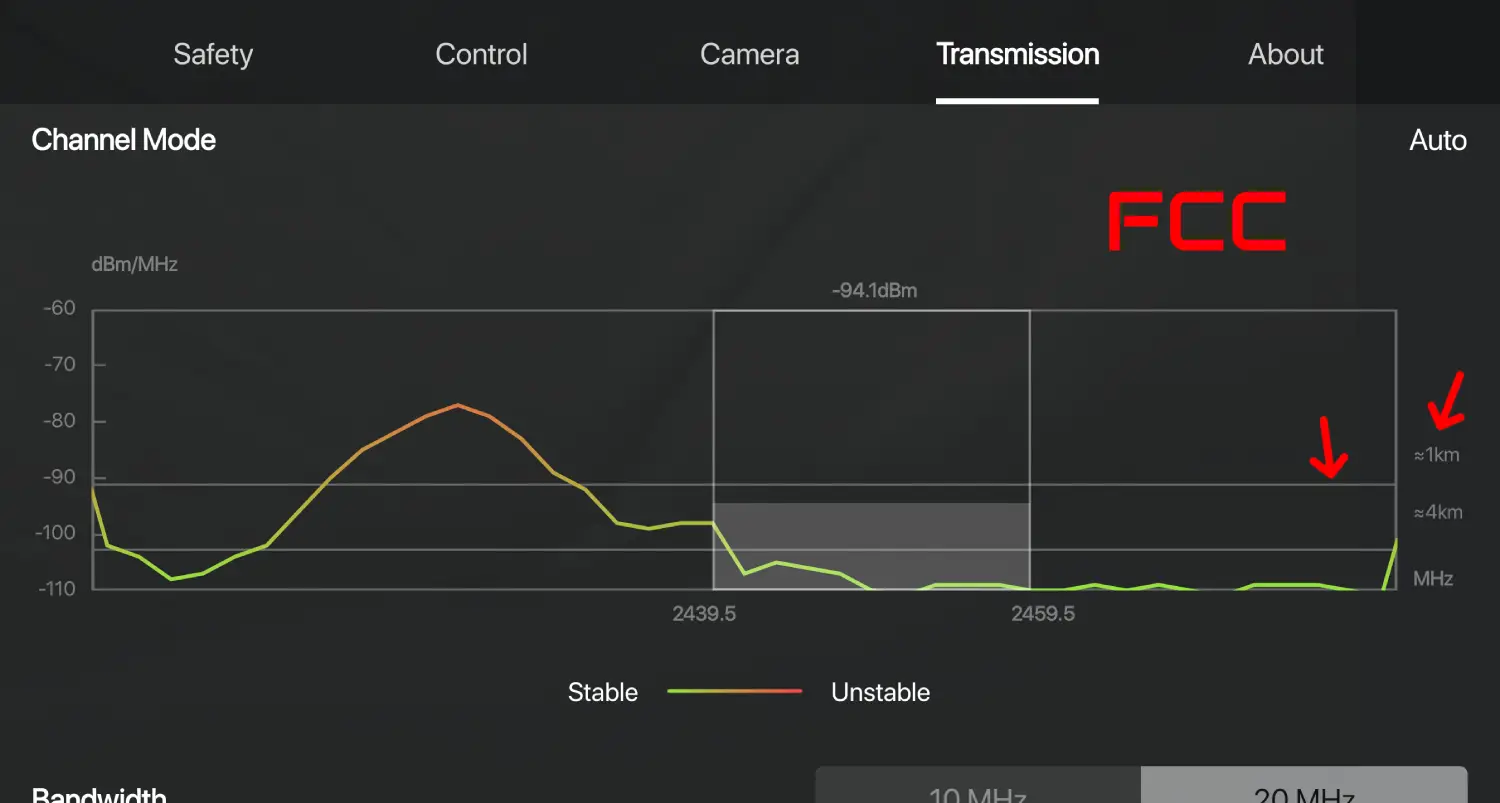
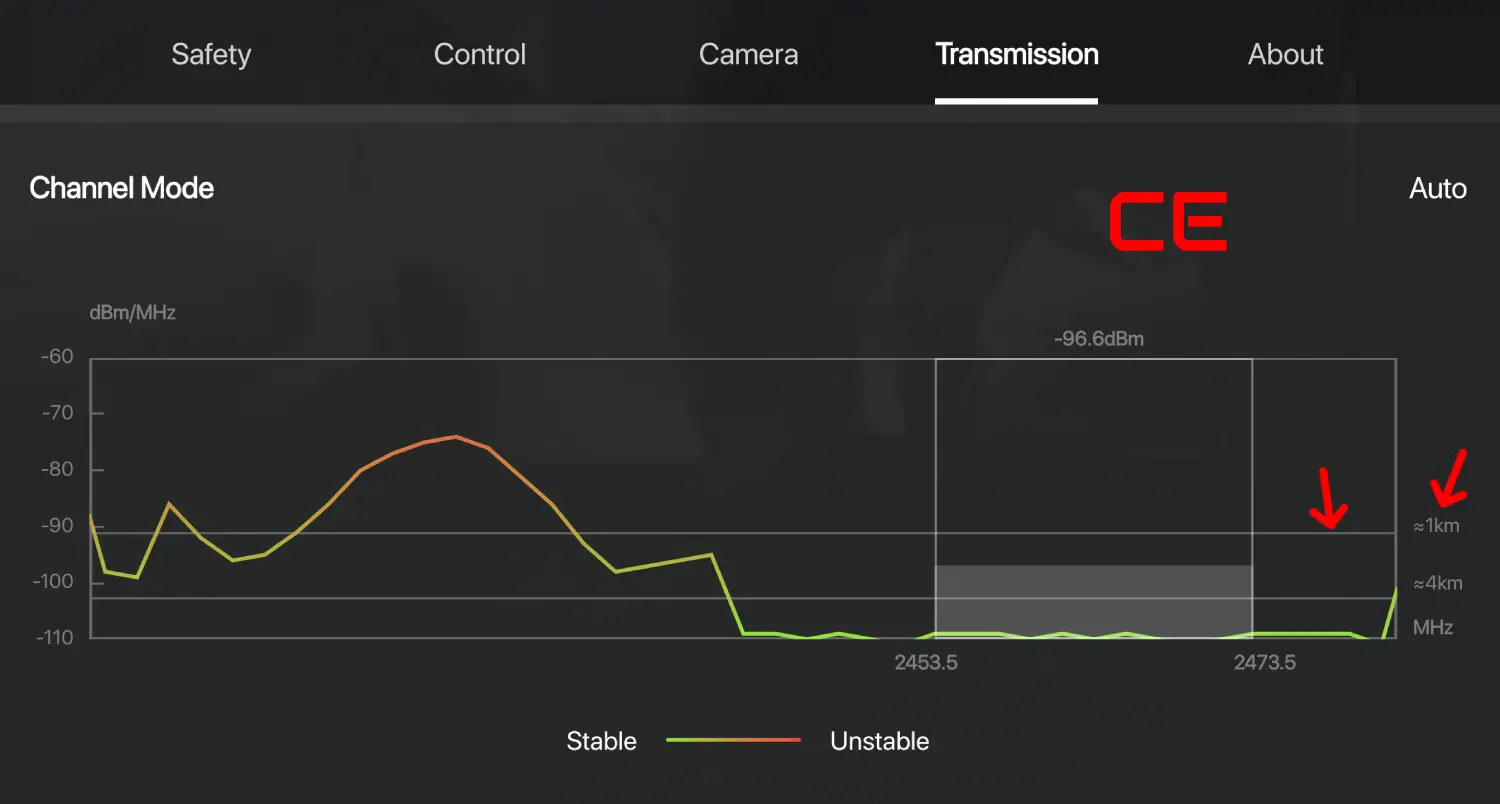
Images adapted from the DJI-FCC-HACK project (GPL-3.0).
Tested Devices
Tested and working on the following drones with RC2:
- ✓DJI Mini 5 ProRC2
- ✓DJI Neo 1RC2
- ✓DJI Neo 2RC2
- ✓DJI Avata 360RC2
All DJI aircraft that connect to the RC2 should work since the FCC profile is universal. If you test it on a model not listed here, let me know on GitHub Issues.
Notes
Enjoying FreeFCC?
If this tool helped you, please star the repo on GitHub and consider buying me a coffee.